![sunrise_logo-2022-sort.png]](https://riseb2b.dk/hs-fs/hubfs/sunrise_logo-2022-sort.png?height=40&name=sunrise_logo-2022-sort.png)
There were several iterations of it where we learned that the most stable version is to:
- Create a CRON on the server that will pull all the contacts form the HubSpot list and store them in middleware database. This CRON will get executed once every 10 minutes.
- Second script on the server will export the data from the database queue in JSON format.
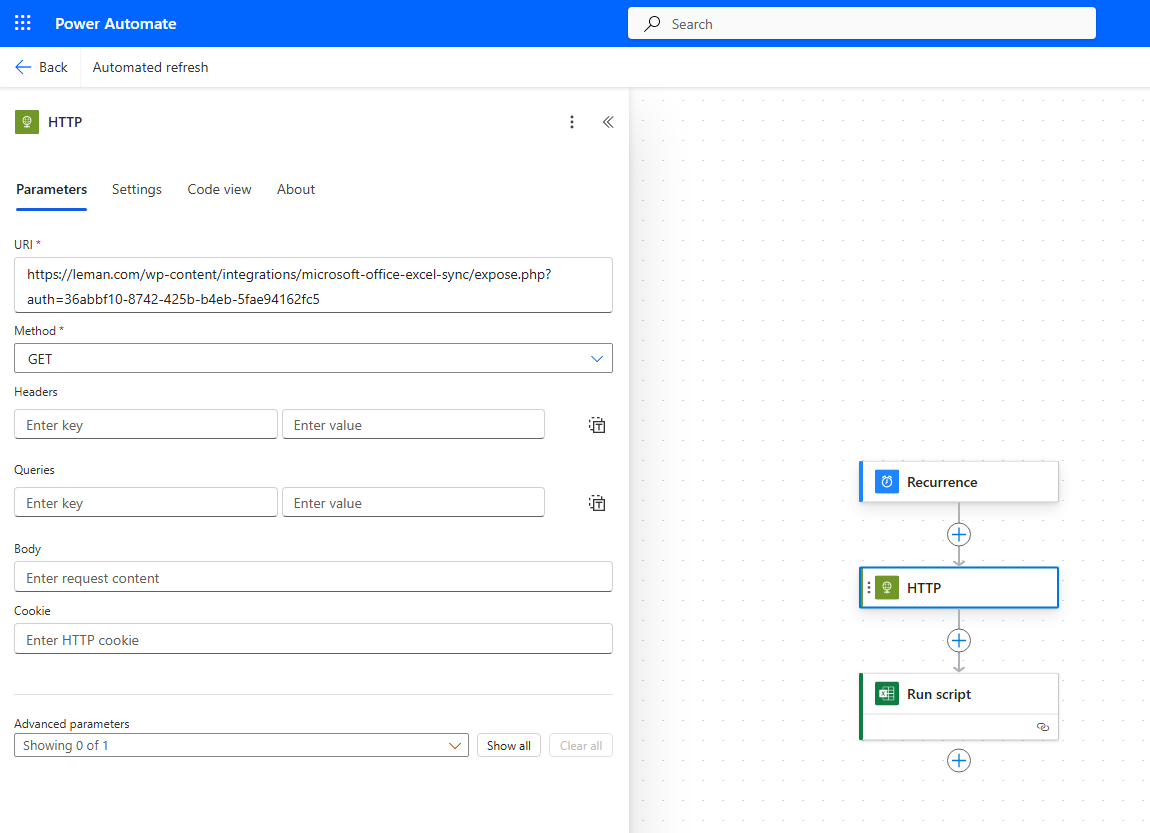
- In PowerAutomate, every 10 minutes HTTP Request will be created to the second script. Once that data is pulled from the server, it will be sent to Excel function that will create rows from it in the actual Excel sheet. Olde data will first get removed and then replaced by the new one (to make sure that there are no leftovers there).
Setup in PowerAutomate:
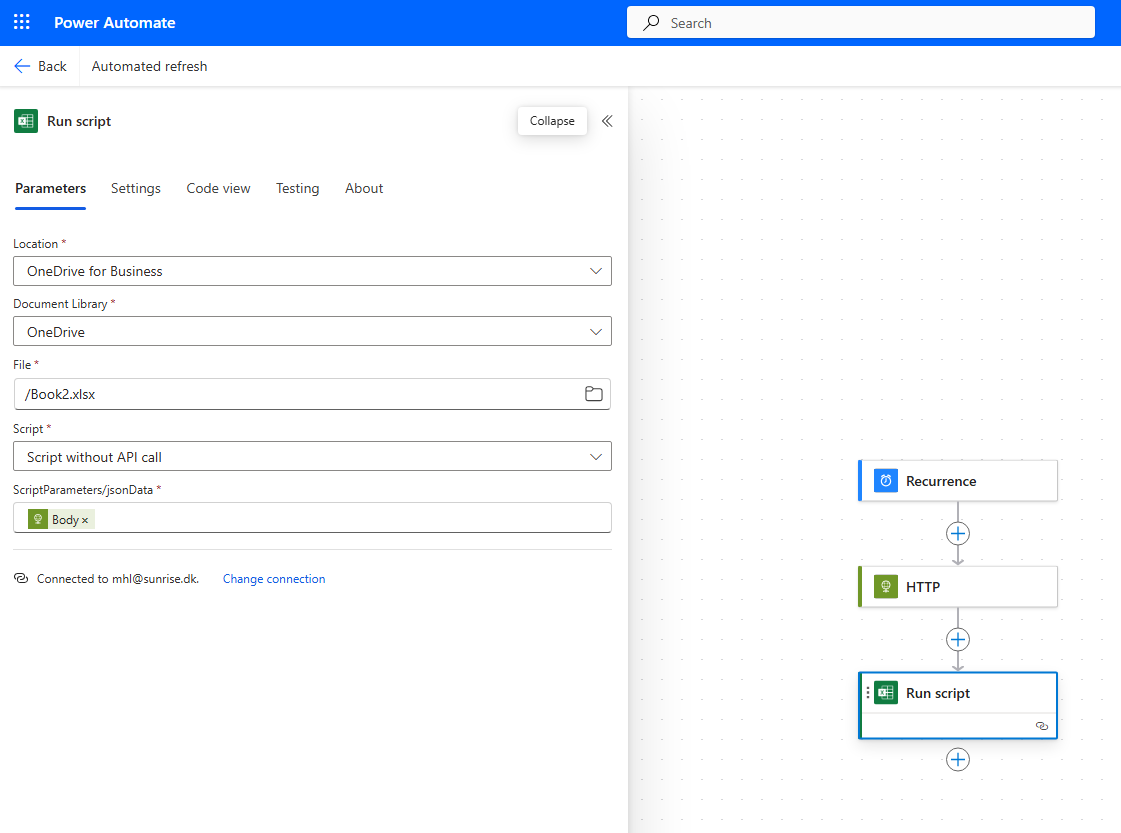
Excel function for this automated sync:
function main(workbook: ExcelScript.Workbook, jsonData: string): void {
    const sheet = workbook.getWorksheet("Development");
    sheet.getUsedRange()?.clear();

    const data = JSON.parse(jsonData) as Array<{
        hsid: number | null;
        pick_up_location: string | null;
        pick_up_address: string | null;
        delivery_country: string | null;
        delivery_address: string | null;
        message: string | null;
        firstname: string | null;
        lastname: string | null;
        email: string | null;
        mobilephone: string | null;
        lead_send_to: string | null;
        company: string | null;
        form_submission_date: string | null;
    }>;

    const headers: string[] = [
        "HSID",
        "Pick-up location",
        "Pick-up address",
        "Delivery country",
        "Delivery address",
        "Message",
        "First name",
        "Last name",
        "E-mail",
        "Phone",
        "Lead send to",
        "Company",
        "Form submission date"
    ];
    sheet.getRange("A1:M1").setValues([headers]);

    const rows: (string | number | null)[][] = data.map((item) => [
        item.hsid,
        item.pick_up_location,
        item.pick_up_address,
        item.delivery_country,
        item.delivery_address,
        item.message,
        item.firstname,
        item.lastname,
        item.email,
        item.mobilephone,
        item.lead_send_to,
        item.company,
        item.form_submission_date
    ]);
    sheet.getRange(`A2:M${rows.length + 1}`).setValues(rows);

    const standardHeight = 15;
    sheet.getRange("A1:M" + (rows.length + 1)).getFormat().setRowHeight(standardHeight);
    sheet.getRange("A:M").getFormat().autofitColumns();
    sheet.getRange("A1:M1").getFormat().getFont().setBold(true);
    sheet.getRange("A1:M" + (rows.length + 1)).getFormat().setHorizontalAlignment(ExcelScript.HorizontalAlignment.left);

    console.log("Data fetched and written successfully.");
}
To the Excel sheet, we have also added a custom button that can trigger the refresh on demand by clicking it:
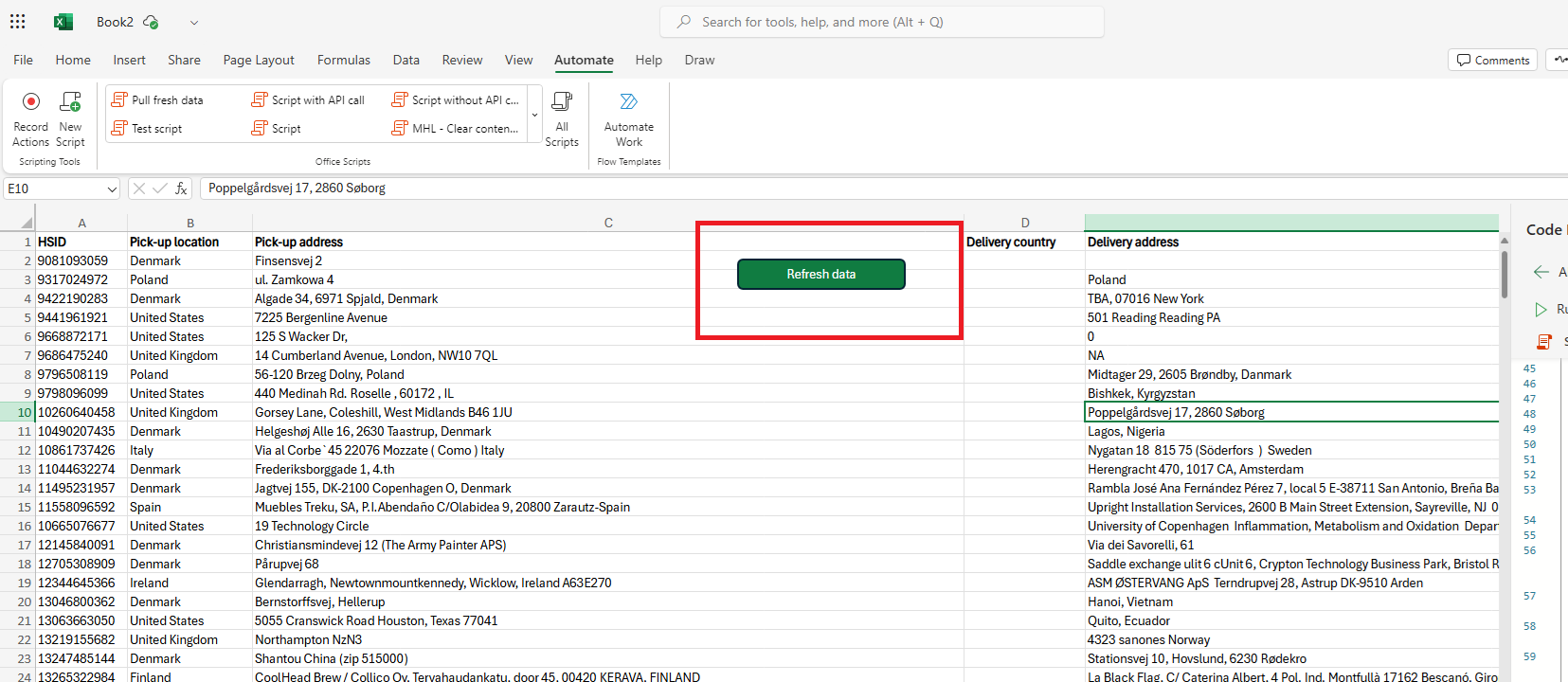
This button has custom Excel function as well:
function main(workbook: ExcelScript.Workbook): void {
    const sheet = workbook.getWorksheet("Development");
    sheet.getUsedRange()?.clear();
    fetch("https://leman.com/wp-content/integrations/microsoft-office-excel-sync/expose.php?auth=36abbf10-8742-425b-b4eb-5fae94162fc5").then((response) => {
        return response.json();
    }).then((jsonData: unknown) => {
        const data = jsonData as Array<{
            hsid: number | null;
            pick_up_location: string | null;
            pick_up_address: string | null;
            delivery_country: string | null;
            delivery_address: string | null;
            message: string | null;
            firstname: string | null;
            lastname: string | null;
            email: string | null;
            mobilephone: string | null;
            lead_send_to: string | null;
            company: string | null;
            form_submission_date: string | null;
        }>;
        const headers: string[] = [
            "HSID",
            "Pick-up location",
            "Pick-up address",
            "Delivery country",
            "Delivery address",
            "Message",
            "First name",
            "Last name",
            "E-mail",
            "Phone",
            "Lead send to",
            "Company",
            "Form submission date"
        ];
        sheet.getRange("A1:M1").setValues([headers]);
        const rows: (string | number | null)[][] = data.map((item) => [
            item.hsid,
            item.pick_up_location,
            item.pick_up_address,
            item.delivery_country,
            item.delivery_address,
            item.message,
            item.firstname,
            item.lastname,
            item.email,
            item.mobilephone,
            item.lead_send_to,
            item.company,
            item.form_submission_date
        ]);
        sheet.getRange(`A2:M${rows.length + 1}`).setValues(rows);
        const standardHeight = 15;
        sheet.getRange("A1:M" + (rows.length + 1)).getFormat().setRowHeight(standardHeight);
        sheet.getRange("A:M").getFormat().autofitColumns();
        sheet.getRange("A1:M1").getFormat().getFont().setBold(true);
        sheet.getRange("A1:M" + (rows.length + 1)).getFormat().setHorizontalAlignment(ExcelScript.HorizontalAlignment.left);
        console.log("Data fetched and written successfully.");
    }).catch((error) => {
        console.log("Error fetching data:", error);
    });
}
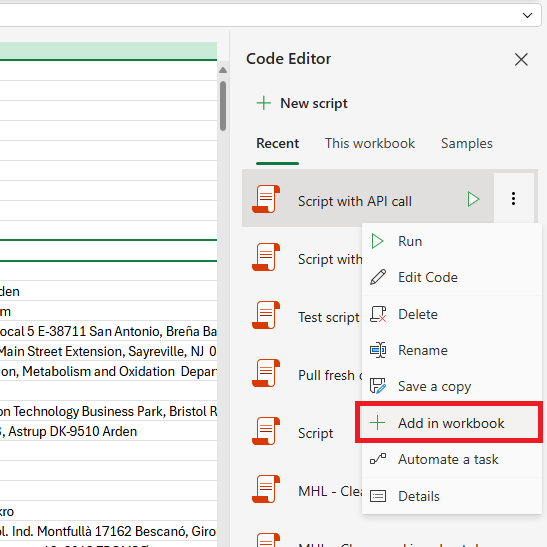
How to add the button in Excel